Importing a configuration takes a previously exported configuration and adds it to the local
configuration storage.
- On the File menu, select ≈Export/Import
Configurations view and click Import.
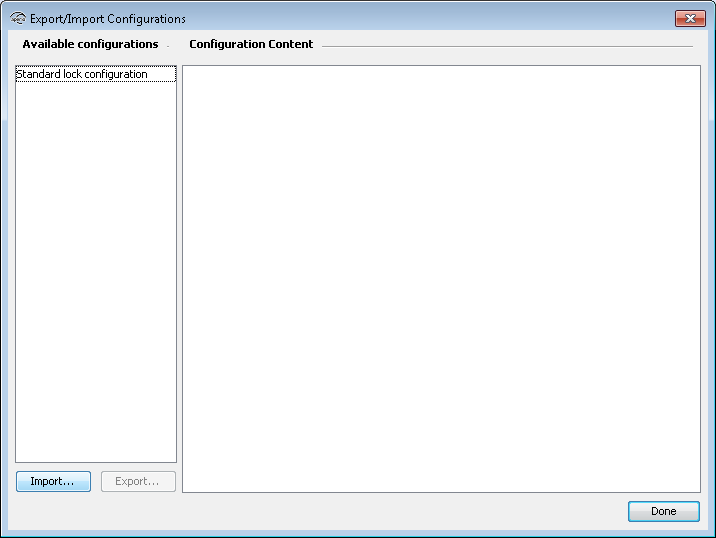
- Select a valid configuration XML-file and click Open.
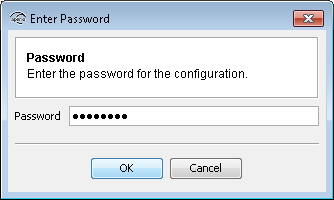
- Enter the password and click OK.
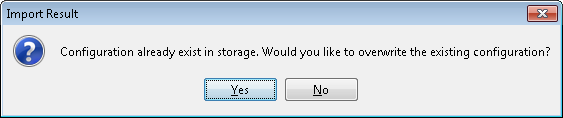
Note: The configuration is identified by its name, not the name of the export file. When
importing a configuration that already exists in the Programming Application you will be
prompted if you want to replace the existing configuration.