- Ensure that you are using the latest version of the Aperio Programming Application. If not install the latest version.
- Check on the UHF Link indicator that the signal strength indicator is good enough to be
able to perform an upgrade (green or yellow). If you have bad signal strength (red) the
Programming Application will not enable the upgrade function.

- Right click on the communication hub/lock/sensor in the Installation view and select
Upgrade Firmware.

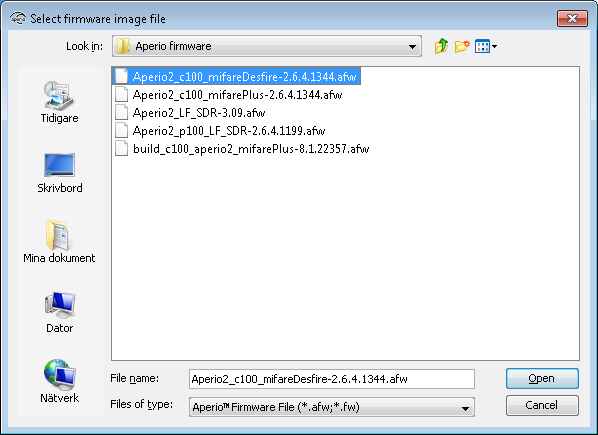
- Select the firmware file (.afw/.fw file) and click Open.
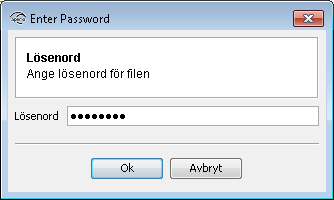
- Enter the password supplied with the firmware.
 Result: The firmware upgrade window is shown, with a list of the units that may be upgraded. Depending on the firmware file, the list of firmware may vary. Two examples are shown below.

- Click on Release Info to get more information about the selected
.afw file.
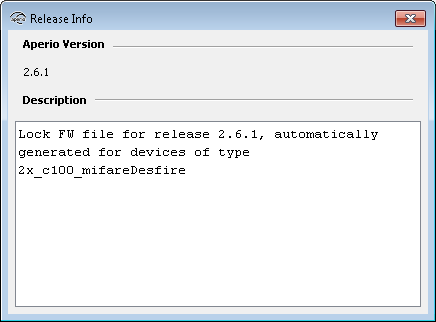
The Programming Application performs a check of firmware and lock so that the firmware always match the hardware. A C100 afw file will only be used with cylinder locks. An E100 afw file will aonly be used with escutcheon locks etc.
- Close the Release Info window.
- Check that the new firmware version is higher than the firmware version currently loaded
on the hardware.
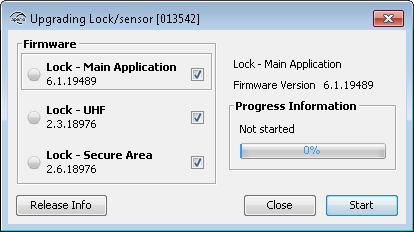 Note: No sanity check is done by the Programming Application before the firmware download starts. Applying an older firmware than installed can cause the hardware to malfunction.
 - All firmware is selected to be downloaded by default. Uncheck firmware that you do not
wish to download.
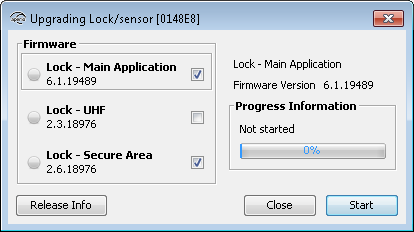
- Click Start to initiate the upgrade process.
- If you are upgrading a lock/sensor you will be prompted to hold a credential at the
lock/engage sensor before the download starts.
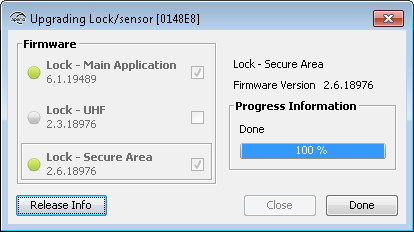
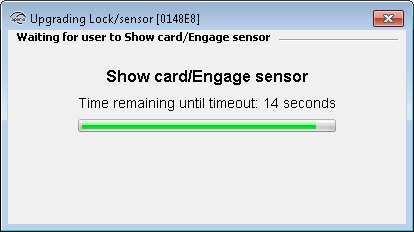 Result: The upgrade will start with the first selected firmware in the list. A green arrow to the left of the selected firmware will indicate the firmware is being upgraded and the firmware is downloaded.After finished download, the device resets.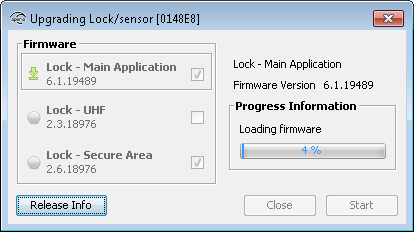
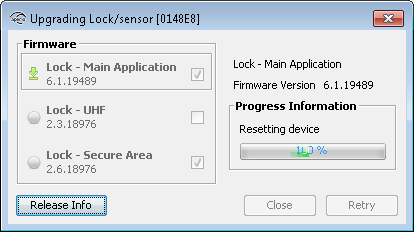
- Click Next to continue with the next firmware in the list. Or click
Close to cancel the rest of the firmware upgrade process.
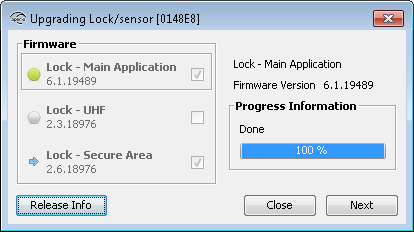
- After all firmware is downloaded, click Done.