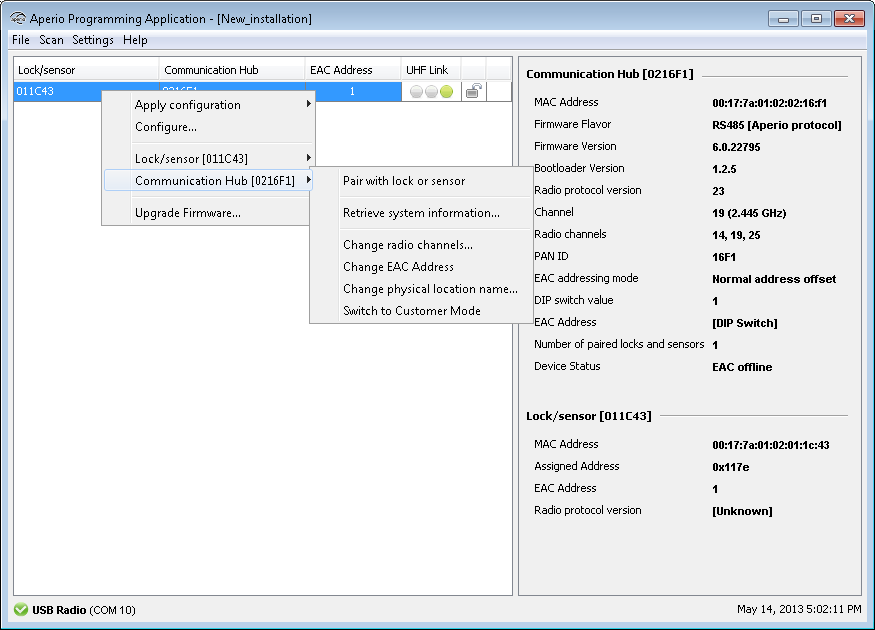
The installation view is the main window when working with door installations. This window is automatically displayed after logging in to an installation and after the scanning process.
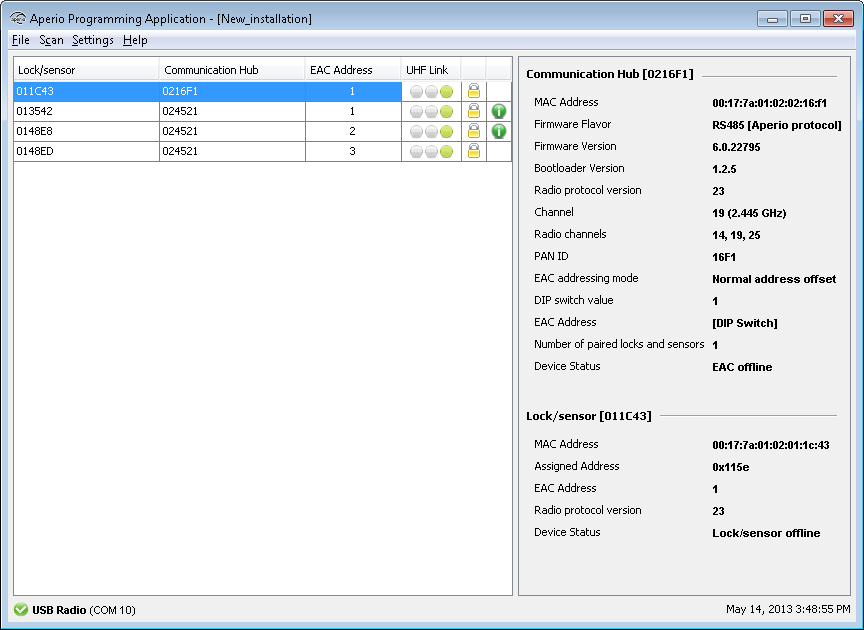
The following information is shown:
- Lock/sensor: Indicates if there is a lock/sensor paired with the communication hub. If there is a paired lock/sensor the MAC address of the lock/sensor is shown.
- Communication hub: The MAC address of the communication hub.
- EAC Address: Shows the EAC address for the lock paired with this communication hub.
- UHF Link: Indicates the strength of the UHF wireless link (through the USB Radio
device) between the communication hub and the Aperio Programming Application.
- Green: Good
- Yellow: OK
- Red: Not OK (firmware upgrade not allowed)
- Security Mode: Indicates the security mode of the communication hub. During final
installation all locks and hubs must be changed from Manufacturer mode to Customer mode.

Customer mode
Door is using secure radio communication with the customer encryption key.

Manufacturer mode
Door is using unsecure radio communication with the default encryption key.
- Warning indications: The following warning levels are given. Hoover with the mouse
to see more information.

For example: Security mode for communication hub is undefined.

For example: The communication hub firmware (rfif) version is older than Aperio Programming Application.

For example: The communication hub is not paired with any lock.

For example: The security modes in communication hub and lock are not equal and should be changed, see section Change EAC address.
- Detailed information of selected hub and lock/sensor is shown on the right side of the window.
Right clicking a communication hub or lock/sensor will give access to the functions available in the Programming Application. See section Programming Application Functions for an overview of all functions.