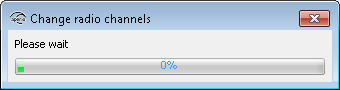
Changing the radio channels can be necessary if you experience interference between communication hubs, which can occur if many hubs are installed close to each other.
Note: To use this function, you must have the Show advanced settings
checkbox checked in User Settings, see section User settings. Follow
these steps to change the radio channel for the communication hub and lock/sensor:
Note: Always change the radio channel in the locks/sensors before changing in the communication
hub!
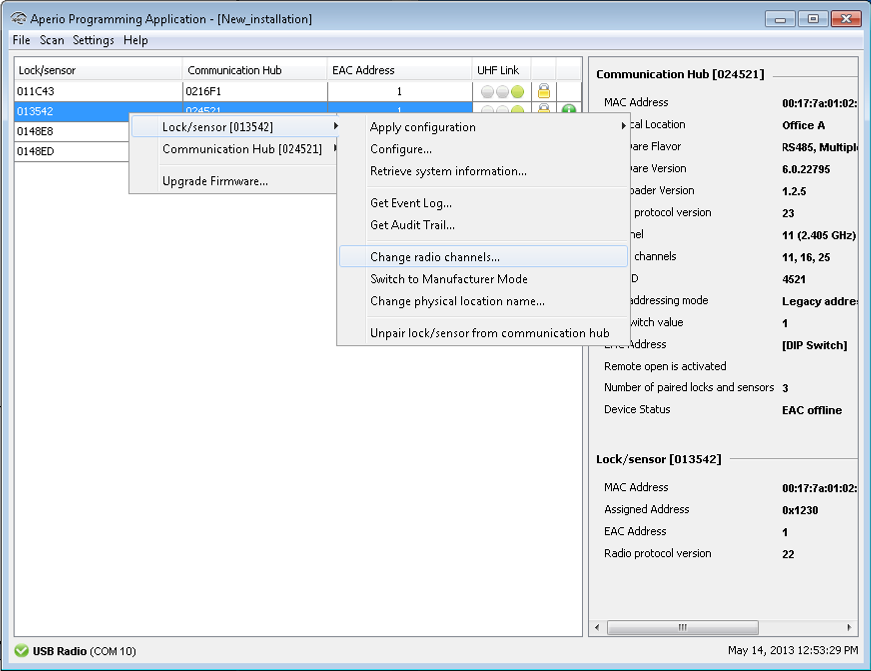
- Select the lock/sensor in the scan result table. Right click and select .
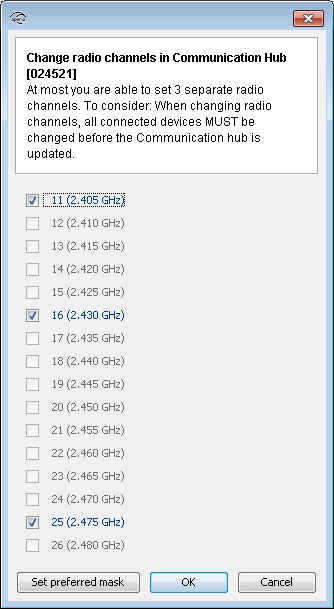
- Uncheck any of the three currently used channels to be able to select other radio
channels. Click OK. Note: For the US market channel 26 is disabled.
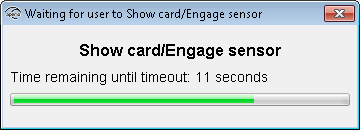
- Hold the credential at the lock, or engage the magnet for the sensor to perform the
update.
 Result: A progress bar shows that the update is being performed. The Device update result dialog box shows the result of the update when it has been performed.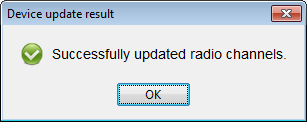
- Repeat this procedure for all locks/sensors connected to the current communication hub.
Recommendation: Although it is possible to set different channels to locks/sensors paired with one hub, it is preferable to use the same three channels for all locks/sensors on that communication hub in order to create a more stable radio connection. Communication problems occur more likely between closely installed hubs than between closely installed locks/sensors paired with one hub.
- Finally, change the radio channel for the communication hub: Right click and select .
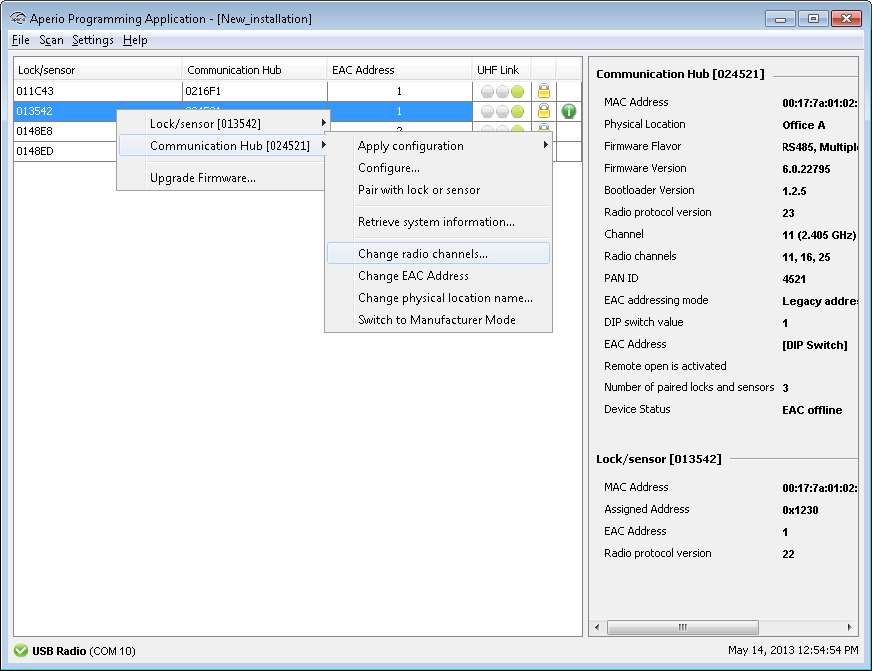
- Uncheck any of the three currently used channels to be able to select the same radio
channels as for the lock/sensor. Click OK. Result: A progress bar shows that the update is being performed. The Device update result dialog box shows the result of the update when it has been performed.