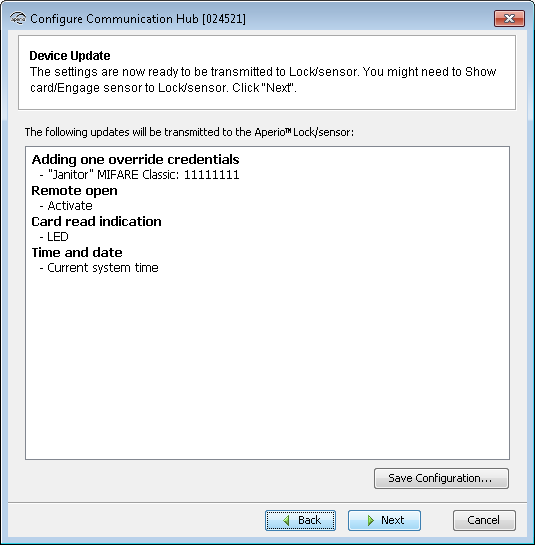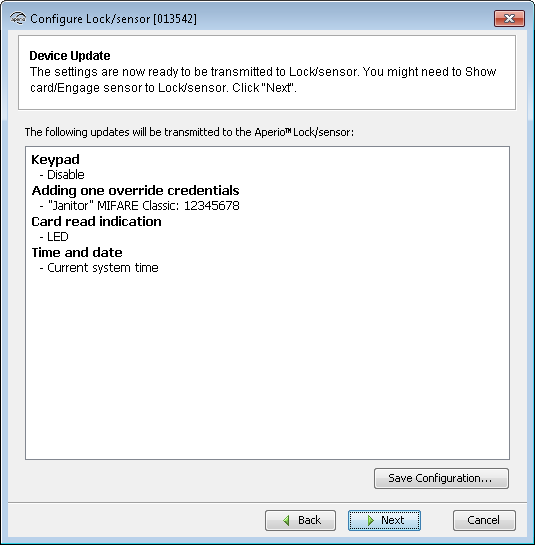
Here a summary of configurations that will be transferred to the unit. The Device Update dialog box shows a summary of the configuration tasks that will be downloaded to communication hub/lock/sensor. The configuration may be used later to configure other devices with the same information, by clicking Save configuration:
- The Save Configuration dialog box shows a summary of the configuration tasks that have been collected during the different steps in the Configuration Wizard. You can exclude some tasks by simply ticking the check box.
- Recommended tasks to save could be:
- RFID configuration
- Change security mode
- Override credential
- Device time update
- And optionally some advanced features like Battery Alarm, Status configuration and Locking parameters.
If you choose to save a configuration, keep in mind that some configuration settings should not be saved. Only save settings that are general for all locks in your installation.Tip: Create a set of configurations for the most common settings in your system.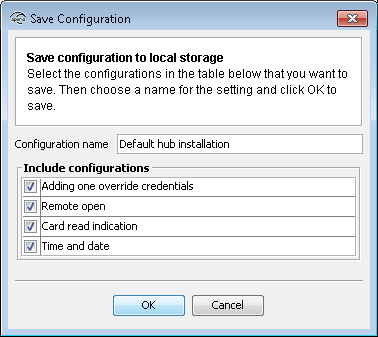
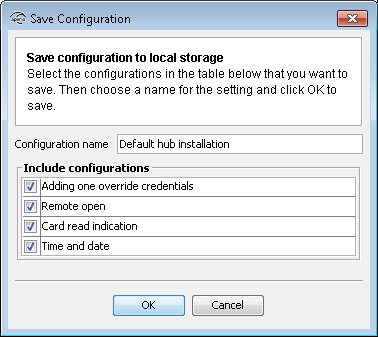
- Enter a unique and suitable name for this configuration in the Configuration name field.
Choose this name carefully, to make it clear what settings are changed in the lock/sensor or
communication hub. You could, for instance, name it according to the different
configuration tasks or, if applicable, use a name that reflects the specific door type.
- Click OK.
Result: The configuration is saved in the local storage, and you are back in the Configuration Wizard. Choosing Cancel on the Device Update page does not affect the locally stored configuration.